Keyboard shortcuts.
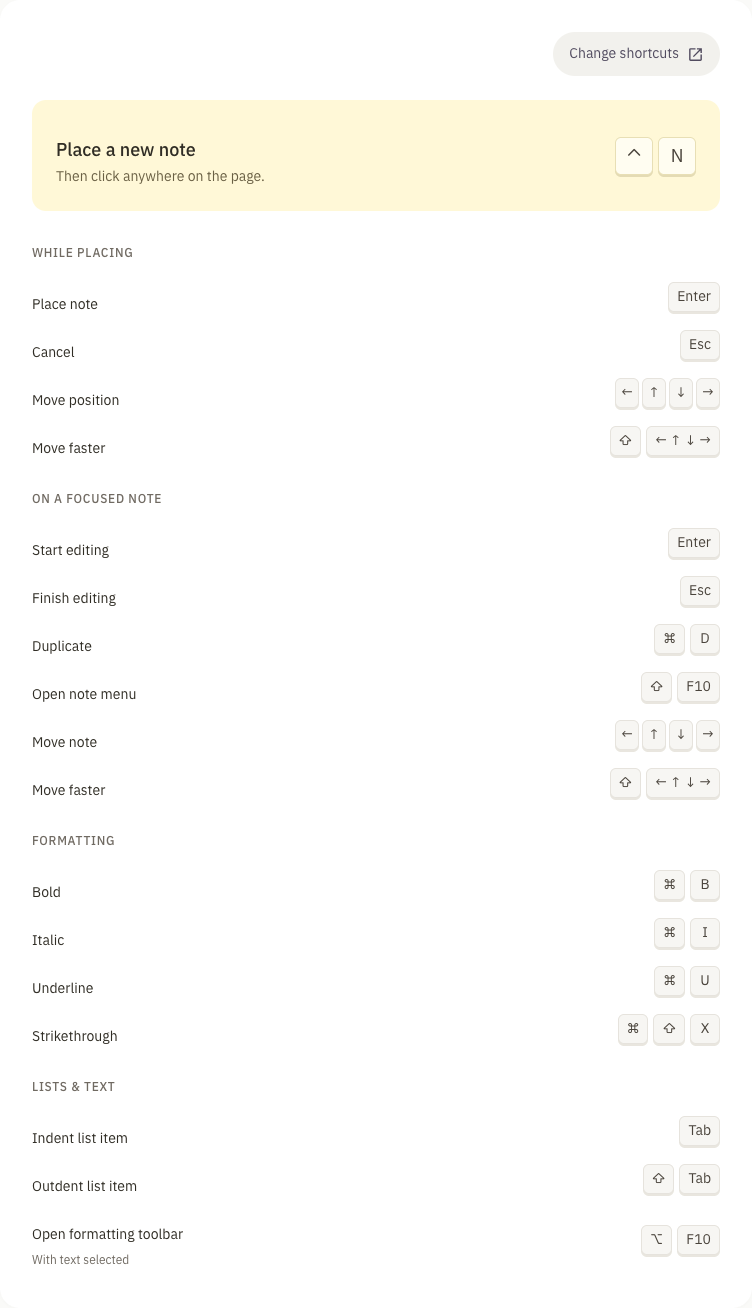
A quick reference for placing, moving and editing your notes.
While placing a note
Use these keys after pressing your New note keyboard shortcut, before placing the note on the page.
Click or press Enter to place the note. Esc, Tab, a right-click, or pressing New note again cancels placement. Arrow keys move it 1 pixel; hold Shift to move 20 pixels at a time.
- Place note
- Enter
- Cancel
- Esc
- Move position
- Arrow keys
- Move faster
- ShiftArrow keys
On a focused note
Focus the note’s paper or dotted handle to move it with the keyboard. Arrow keys move it 1 pixel, or 20 pixels while holding Shift. While typing, arrow keys move the text cursor instead.
- Start editing
- Enter / Space
- Finish editing
- Esc
- Duplicate note
- Cmd / CtrlD
- Open note menu
- ShiftF10
- Move note
- Arrow keys
- Move faster
- ShiftArrow keys
The Context Menu key also opens the note menu on keyboards that have one.
Format text
Select text, then apply a style. Use Cmd on macOS and Ctrl on Windows or Linux.
- Bold
- Cmd / CtrlB
- Italic
- Cmd / CtrlI
- Underline
- Cmd / CtrlU
- Strikethrough
- Cmd / CtrlShiftX
Lists and editing
Tab and Shift + Tab work in bullet lists, numbered lists and checklists. A nested item needs a preceding item, and lists support up to eight nested levels.
- Indent list item
- Tab
- Outdent list item
- ShiftTab
- Line break in the same item
- ShiftEnter
- Continue list or checklist
- Enter
- Leave an empty list item
- Enter / Backspace
- Toggle a focused checklist checkbox
- Space
- Undo edit
- Cmd / CtrlZ
- Open a link while editing
- Cmd / CtrlClick
A new checklist item starts unchecked. Enter on an empty item exits its current nesting level or returns to plain text. Pasted or dropped text is inserted without formatting.
Use the formatting toolbar
Select text to reveal the toolbar before pressing Alt + F10. Its six actions are Heading 1, Heading 2, bold, italic, underline and strikethrough.
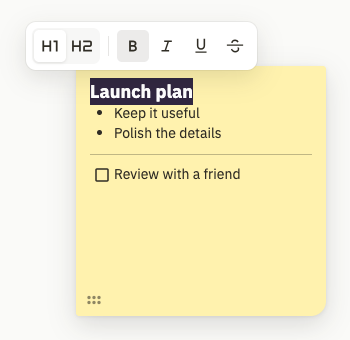
- Focus the visible toolbar
- AltF10
- Move between actions
- Left / Right arrow
- First or last action
- Home / End
- Apply the focused action
- Enter / Space
- Return to the editor
- Esc
Choose a New note shortcut
Chrome lets you choose the extension’s New note shortcut. Open chrome://extensions/shortcuts and find Duonote. The binding shown there is the one that applies to your browser.
The default is Control + N on macOS, and Alt + N on Windows or Linux. Chrome may change or leave the binding unassigned if it conflicts with another shortcut; use the setting shown in your browser.